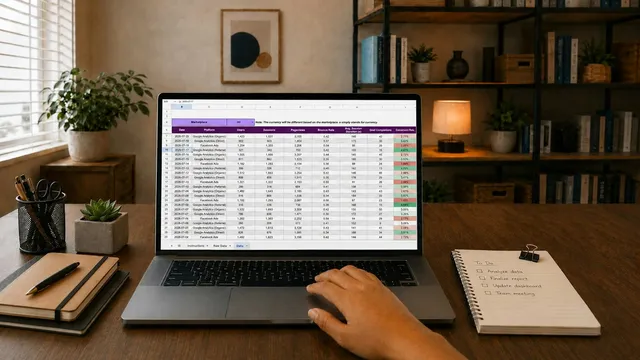
Most small settings start with a spreadsheet, and for a while it works. Then one day you realise the medical information for a new pupil is in someone’s inbox, three versions of the register exist, and nobody is sure which one the local authority was sent.
Pupil database software gives a small setting one secure place for pupil records, registers, staff checks and reports, with controlled access instead of shared files. The right system saves hours each week, reduces data protection risk and makes reporting to schools and local authorities quick. Choose on fit, pricing clarity and data protection, not feature count.
This guide will help you decide whether it is time to move, what to look for, what to ask suppliers, and how to switch without losing data or breaking UK GDPR.
What are the signs you have outgrown spreadsheets?
Spreadsheets are brilliant for lists and sums. They are much less good as the system of record for vulnerable children. Here are the warning signs.
Version chaos
“Pupils FINAL v3 (Sarah’s copy).xlsx” is a familiar sight. When several people edit copies of the same file, you end up with conflicting information and no way of knowing which is right. Shared online spreadsheets help, but they still make it easy to sort one column and scramble a row, or delete something by accident.
Registers take hours
If someone spends Friday afternoon copying marks from paper registers into a spreadsheet, then working out percentages for each commissioner, you are paying for a lot of admin that software can do in seconds.
Medical and allergy information is hard to find
In a real emergency, a member of staff needs to see a pupil’s allergies, medical needs and emergency contacts immediately. If that information is on tab 4 of a spreadsheet, or only on the paper referral form, it is not doing its job.
Too many people can see too much
Spreadsheets tend to be all or nothing. Anyone who can open the file can usually see every pupil’s medical, SEN and family information, even if they only need the timetable. Under UK GDPR, you should limit access to what people need for their role.
Copies everywhere
Files get emailed to commissioners, downloaded to laptops and saved to USB sticks. Each copy is another place a breach can happen, and another copy you need to find when a parent makes a subject access request.
Staff checks live somewhere else
If DBS numbers, references and certificates are in a separate spreadsheet (or a filing cabinet), it is hard to prove quickly to a commissioner that every member of staff has been checked.
What should a pupil database do for a small setting?
You do not need everything a large secondary school’s management information system does. You need the things you do every week, done well.
Pupil records
- Contact details for parents and carers, with more than one emergency contact
- Medical notes and allergies, shown prominently
- SEN or ALN information, GP details and whether the pupil is a Looked After Child
- Transport arrangements, such as taxi details
- The commissioning school or local authority, referring agency and funded or entitled hours
Timetables and registers
- A weekly timetable, across more than one site if you have them
- Registers generated from the timetable, so staff only mark what is expected
- Absence reasons from a consistent list, with notes
Reports
- Attendance against entitled or funded hours
- Lists you can hand to a first aider, SENCo or commissioner in seconds
- Export to CSV so you can share or analyse data
Staff compliance
- DBS, references, qualifications and certificates in one place
Access control
- Different roles, so a sessional teacher sees what they need and no more
Just as important is what the system should not do: make simple tasks complicated. If a demo needs 20 clicks to take a register, it will not get used.
What questions should you ask suppliers?
Suppliers all say they are secure, simple and good value. These questions help you find out what that means in practice.
Where is the data hosted?
Ask where your data is stored and processed, including backups and any sub-processors (other companies the supplier uses). Data does not have to be in the UK, but you need to know where it is. The ICO explains that the UK has adequacy regulations covering all EEA countries, so transfers there can flow freely. For other countries, ask what safeguard covers the transfer.
How do you protect our data?
Ask for their security information in writing. The DfE’s guidance on procuring EdTech suggests asking suppliers to walk you through how personal data flows at every stage, and about security measures, testing and access controls. Be wary of vague answers and of certifications you cannot check.
Will you sign a data processing agreement?
Under UK GDPR, when a supplier processes personal data on your behalf, there must be a contract that includes specific terms. The ICO’s guidance on what needs to be included in the contract lists them. They include acting only on your documented instructions, confidentiality, security, rules on sub-processors, helping you with individuals’ rights and breaches, deleting or returning data at the end of the contract, and allowing audits.
How does pricing work?
This is where costs can surprise you.
- Per pupil pricing looks cheap at first but goes up as you grow, and can be hard to budget for if numbers change during the year.
- Flat pricing is easier to budget and does not penalise you for taking more referrals.
- Extras matter: ask about set-up fees, data import, training, extra users, extra sites, support and price rises at renewal.
How long is the contract?
Ask about the minimum term, notice period and what happens at renewal. A long contract is a big commitment for a small setting.
Can you import our data, and can we get it out again?
Ask who does the import, whether there is a charge, and what format they need. Just as important: how do you export all your data if you leave, and how will they confirm that remaining copies have been deleted? The DfE’s EdTech guidance recommends confirming exactly this before you sign.
What does support look like?
Is it email, phone or both? Who answers: someone who knows the product, or a ticket queue? What are the hours? Ask to speak to an existing customer of a similar size.
How honest is the roadmap?
Ask what the system does not do yet. A good supplier will tell you plainly and say which gaps are planned. Be cautious of anyone who says “yes” to every question, and never buy on the promise of a feature that does not exist yet unless you could live without it.
What does UK GDPR mean for switching systems?
Moving to a new system is a good moment to get your data protection in order. This is a summary, not legal advice. If you have a data protection officer, involve them early. See our UK GDPR glossary entry for the basics.
Know your lawful basis
You need a lawful basis for processing personal data under UK GDPR, and for special category data such as health information you also need a condition under Article 9. The ICO’s guidance on lawful basis and special category data explains the options. Moving to a new system does not usually change your lawful basis, but it is worth checking your records reflect what you actually hold.
Carry out a DPIA
A data protection impact assessment (DPIA) is a structured way to identify and reduce risks before you start. The ICO says you must do a DPIA where processing is likely to result in a high risk to individuals, and recommends doing one if in any doubt. The DfE’s EdTech guidance advises completing it early, before decisions are final. Records about vulnerable children, including health and SEN information, are exactly the kind of data where a DPIA is sensible. Our DPIA glossary entry explains the steps.
Sign a data processing agreement
As above, the supplier is your processor and you remain the controller. Make sure the contract covers the required terms before any real data is uploaded.
Set retention periods
UK GDPR’s storage limitation principle means you should not keep personal data for longer than you need it, and you should be able to justify how long you keep it. The DfE’s record keeping guidance for schools recommends a retention schedule and gives suggested periods for common records. Decide your periods before migrating, so you do not import records you should already have deleted.
Transfer the old data securely
Do not email a spreadsheet full of pupil data to a supplier. Ask for a secure upload method. Only send what is needed, and keep a note of what was sent, when and to whom. The ICO’s guide to data security covers the principles.
Delete old copies
Once the new system is live and checked, find every copy of the old spreadsheets: shared drives, email attachments, downloads folders, laptops, USB sticks and personal cloud accounts. Keep one secure archive only if you have a documented reason, and delete the rest. The DfE’s record keeping guidance also says you must document destruction of records, including a brief description, the number of files and who authorised it.
A step-by-step migration plan
Here is a plan that works for most small settings. Allow four to eight weeks.
1. Audit your data
List every spreadsheet, form and folder that holds pupil or staff information. For each, note what it contains, who uses it and who keeps it up to date. You will almost certainly find duplicates.
2. Decide what to keep
Not everything needs to move. Leavers from several years ago, abandoned columns and old notes may be better archived or deleted in line with your retention schedule.
3. Clean the data
This is the biggest job. Fix spelling of names, standardise dates, remove duplicate pupils, fill in missing emergency contacts and check medical information is current. Standardise free-text values such as absence reasons into a short list.
4. Map your fields
Match each column in your spreadsheet to a field in the new system. Where something has no obvious home, decide whether it belongs in a note, a custom list or nowhere at all.
5. Set up your lists and structure
Before importing pupils, set up your sites, rooms, staff, absence reasons and other dropdown lists. It is much easier to import into a system that is already shaped like your setting.
6. Import and check
Import a small batch first and check it carefully against the source. Then import the rest. Spot-check at least ten records in detail, including anyone with medical needs or allergies.
7. Pilot
Run the new system alongside the old for a week or two with a small group, perhaps one site or one class. Take registers in the new system and compare. Fix problems now, not after go-live.
8. Train staff
Keep training short and role-based. Teachers need to know how to take a register and find medical information. Office staff need records and reports. Managers need reports and settings. Write a one-page quick guide.
9. Go live
Pick a clean start date, ideally the start of a week or half term. From that day, the new system is the only place to record information. Say so clearly.
10. Archive and delete
After a few weeks of stable use, archive what you need to keep, delete the old spreadsheets and copies, and record what you did.
What are the common pitfalls?
- Importing messy data. Rubbish in, rubbish out. Clean before you import.
- Running two systems for too long. A short pilot is sensible. Months of double entry means neither system is trusted.
- Buying for features you will never use. A bigger system is not a better one if staff avoid it.
- Skipping the paperwork. No DPIA, no signed processing agreement and no retention schedule will cause problems if something goes wrong.
- Forgetting the old copies. The migration is not finished until old files are deleted.
- Not involving the people who take registers. If front-line staff are not consulted, the system may not fit how your setting actually works.
- Ignoring the exit. Know how you would get your data out before you put it in.
How PupilDB helps
PupilDB was built for small settings leaving spreadsheets behind. Pupil records hold medical notes, allergies shown in red, SEN or ALN, GP, parent and carer contacts, taxi details, Looked After Child status, local authority, referring agency and entitled hours, and registers are built from your multi-centre timetable with absence reasons from your own dropdown lists. Staff records hold DBS details, references, TRN, EWC registration and certificates, and admin and teacher roles control who sees what. PupilDB is hosted on AWS in the EU (Ireland); you can read more on our security and data protection page. Pricing is a flat monthly fee from £150 + VAT, never per pupil, and continuous improvement led by customer feedback is included.
If you are ready to leave the spreadsheets behind, book a demo.